UnWrap Download UnWrap Home
What is UnWrap? - UnWrap removes unwanted line-returns from e-mail and other documents. UnWrap also removes unwanted leading characters such as spaces, tabs, reply character, and other clutter from the document.
Why use UnWrap? - It can be difficult to read or insert an e-mail into another document because the source text is mangled with unwanted line-returns and prefix characters. Text captured from a terminal session and other sources can also be mangled. UnWrap helps to solve these problems by returning the text to unwrapped lines without prefix characters
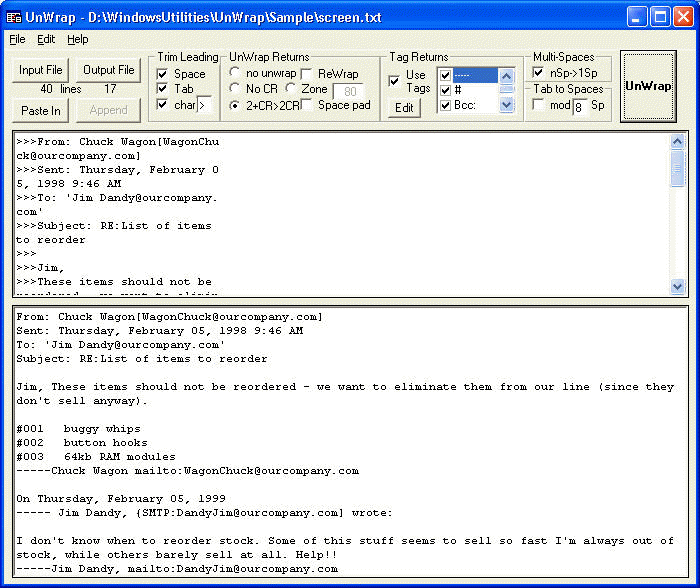
How do I use UnWrap? - If you want to clean up e-mail text, first highlight the text within the e-mail program and Edit-Copy (or Ctrl-C) – this copies the selected text to the clipboard. Then start the UnWrap program with Start | Programs | UnWrap. As the program starts up, the top, or input, window of UnWrap is filled with the contents of the clipboard, i.e. the input text to be cleaned, which has been automatically copied from the clipboard. Using the existing options, UnWrap then processes the top (input) text to the bottom (output) text and to the clipboard. Alternatively, mangled text can also be input from a file by clicking the “Input File” button.
If the resulting output text can be improved further, try different options, then click the “UnWrap” button to translate the input window to the output window. When you Exit UnWrap, the output window is copied to the clipboard for transfer to another program, such as a word processor. Set the cursor to the desired location in the word processing document and Edit-Paste (or Ctrl-V) to paste in the resulting text. Alternatively, the output text can be written to a text file using the Output File button. If an output file has already been written, then the “Append” button is enabled, allowing the user to append additional output window text to the previous output file. The append technique can be used to translate text in sections and append the sections to a growing output file. The following options customize the UnWrap process.
Trim Leading - This group trims unwanted characters at the beginning of all lines. Select all, none, or any combination of the Trim Leading modes.
Space trims leading spaces
Tab trims leading tabs
char > trims the user-selected character entered in the text box; in this case >
Line Returns - This group selectively deletes unwanted line-returns. Additionally, If checked, Space pad will insert a space pad character for each deleted line-return. Select one of the following Line Return modes.
no unwrap all line-returns are kept
No CRs all line-returns are deleted
2CR->2CR deletes isolated line-returns but keeps two consecutive line-returns
Zone Keeps line-returns if the line is shorter than the Zone 56 column; but deletes line-returns that are longer than the Zone. The Zone column value can be typed into the Zone text box or adjusted with the slider bar above the input window.
ReWrap - This option puts line returns in the output window after unwrap and trim options have been completed. The ReWrap lines end on the last word required for each line to be shorter than the Zone width.
Tag Returns - This group starts a new line when it finds Tag text. The text Tags are displayed in the list box inside the CR Tag frame. The CR Tag feature only operates if the Use Tags option box is checked. Individual tags are only used if the individual text Tag is checked. The list of tags can be edited using the "Edit" button. Text Tags can be added, deleted, or a default set of Tags for e-mail can be loaded. The Tags and selection boxes are saved when UnWrap is exited
Multi-Spaces - nSp->1Sp Translate multiple consecutive spaces into one space
Tab to Spaces - mod 8 Sp Translate tabs to a modulus number of spaces for uniform alignment
Menu UnWrap has the following menus and submenus
The height of the
output window
changes as the height
of the program window changes. The relative height of the Input window
to the Output window can be adjusted by grabbing and sliding the bar
between the two windows. The text in the input and output windows can
be manually edited. The last output window is copied to the clipboard
when UnWrap exits.
The location and size of the UnWrap program can be adjusted by grabbing
an edge and dragging the window to the new location and size. The
options and environment are saved when UnWrap exits.
Note,
UnWrap ordinarily starts in the most recently used directory. However,
if an UnWrap shortcut is put in the user "Send To"
directory then UnWrap can be started with the right button on a text
file Send To UnWrap.
>>Home