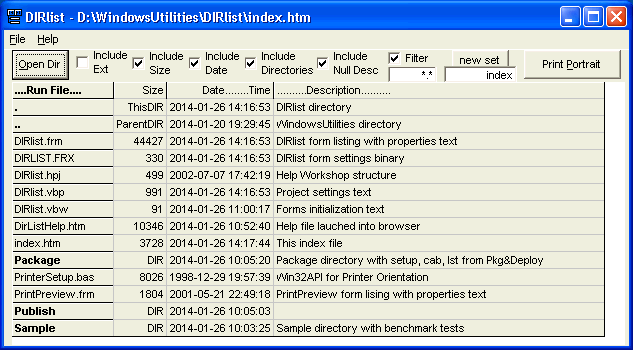
What is DIRlist? - DIRlist prints a list of files and subdirectories within a directory with optional user descriptions
Why use DIRlist? - To print a list of files in a directory. It can be difficult to identify the purpose and content of files with just the filename, especially when the file is old or shared by multiple users. DIRlist provides free text descriptions to supplement the file name for project documentation, instruction manuals, and general identification of directory contents
How
do I use
DIRlist? -
Start
DIRlist with: Start |
Programs | DIRlist
Click the "Open Dir" button to browse to a directory. Files are
initially displayed in file name order alphabetically. The display can
be resorted by clicking on a column title. Select option boxes to
include display of directories, file extensions, file sizes, file
dates, and files with or without a description. The description of a
file is entered by clicking on the cell "Description" of the file. You
can change directories by clicking on a directory name which propagates
the directory descriptions from the previous directory. The "Print"
button prints the displayed files with the selected options. When you
exit, DIRlist saves the file name sorted descriptions in the file
"index.htm" of the directory of each directory accessed by DIRlist. The
index set file name can be changed to support multiple descriptions in
the same directory. The resulting index file can be displayed with a
browser (e.g. Internet Explorer); that is, clicking on "index.htm" will
launch a browser window displaying the file, description and selected
options from the last time DIRlist was used in the directory. The
DIRlist functions and options are described below.
Print - The "Print" button prints the displayed files, descriptions, and selected options on the default printer. The default printer and printer orientation can be selected from "Printer Setup" under the File menu. The default printer orientation is shown on the Print button.
Open Dir - The "Open Dir" button saves the current descriptions and then browses to a new directory. The new directory starts with a view of the files sorted by file name. Recently used directories and set files can also be selected from the File menu. The current directory and set file is shown on the DIRlist caption.
Sort by - Click on any of the column titles to sort the display by that column. The sorted column title is in bold. A second click on the same title reverses the order of the sort and underlines the title to indicate that the sort is in descending order.
Edit description - Click on a cell in the "Description" column to enter or edit a file description. You can move up and down through the description cells by using the up/down arrow keys. The Enter or arrow key completes a description and the Esc key quits a description without making a change.
Run File - Click on file name in the "Run File" column to launch the file (or change the directory). For example, if you click on MyData.xls, then Excel will be started in a new window and loaded with MyData.xls. DIRlist will continue to run in a separate window.
Directory navigation and propagation of descriptions - Click on a bolded directory in the "Run File" column to navigate DIRlist to the selected directory. Clicking ".." navigates to the parent directory. Directory navigation with DIRlist carries the descriptions of related directories to the new directory. For example, suppose the current directory is Sept, which has the description "Sales for Sept 2000"; the parent directory is 2000 with the description "Sales for 2000"; and a subdirectory Chuck has the description "Chuck's Sales for Sept 2000". Then clicking on Chuck will carry "Sales for Sept 2000" into the parent ".." description, and "Chuck's Sales for Sept 2000" into the current "." description. Or, clicking on ".." will carry "Sales for 2000" into the current "." description and "Sales for Sept 2000" into the Sept subdirectory description. Note, descriptions are only propagated by DIRlist navigation when the new directory does not already have a description for the related directory.
Include Ext - Include the file extension in the "Ext" column. The Ext column enables sorting by extension and is not saved or printed since the extension is already included in the file name.
Include Size - Include the file length (bytes) in the "Size" column.
Include Date - Include the file date and time in the "Date...Time" column.
Include Directories - Include subdirectories in the display. The current directory has an alias name of "." and the parent directory has an alias name of ".." Directories are bolded in the filename list and are indicated as "DIR" in the Size column.
Include Null Desc - Include all files and directories in the display even if they do not have an associated description. This option can be used to select the scope of the display and the Print function. The saved index file only includes files and directories that have descriptions unless the "Include Null Desc" option is checked.
Filter - This option filters the display files with the file model shown in the "Filter" text box. The default model for all files, is indicated by "*.*". The "Filter" option selects the scope of display, print, and save set functions. The "Filter" option only filters files and directories when the "Filter" box is checked.
New set - DIRlist saves directory descriptions in a set name htm file in each directory. The default set name is "index" so the default htm file is "index.htm". The file name can be changed in the "new set" text field. Different descriptions from multiple projects or users can be saved with different set names. A "new set" is started when the "new set" button is clicked. The "new set" starts with the descriptions of the previous set. You can switch to a previous set with "Open Dir" or click a recently used file under the file menu.
Menu - DIRlist has the following menus and submenus
The display columns are auto-sized for the expected view. However, the column widths can be resized by grabbing and moving the title borders. The full DIRlist window can be sized and positioned for the best display. User options and recently used directories are saved when DIRlist exits.
Note, DIRlist ordinarily starts in the most recently used directory. However, if a DIRlist shortcut is put in the user "Send To" directory then DIRlist can be started with the right button on a save set file Send To DIRlist.
>>Home